

Morphological Operations
You’ve created a binary mask with thresholding, but it’s noisy — small white specks where there shouldn’t be, or holes punched in objects that should be solid. Morphological operations are the cleanup crew. They reshape the white (foreground) regions in a binary image by expanding, shrinking, or refining them.
Structuring Elements (Kernels)
Section titled “Structuring Elements (Kernels)”Before applying any morphological operation, you need a structuring element — a small shape that defines how the operation affects each pixel’s neighborhood. Think of it as a “stamp” that determines the pattern of expansion or shrinking.
import cv2import numpy as np
# Create a 5x5 rectangular kernelrect = cv2.getStructuringElement(cv2.MORPH_RECT, (5, 5))
# Create a 5x5 elliptical kernelellipse = cv2.getStructuringElement(cv2.MORPH_ELLIPSE, (5, 5))
# Create a 5x5 cross-shaped kernelcross = cv2.getStructuringElement(cv2.MORPH_CROSS, (5, 5))
MORPH_RECT (5x5): MORPH_ELLIPSE (5x5): MORPH_CROSS (5x5):┌───────────────┐ ┌───────────────┐ ┌───────────────┐│ 1 1 1 1 1 │ │ 0 0 1 0 0 │ │ 0 0 1 0 0 ││ 1 1 1 1 1 │ │ 1 1 1 1 1 │ │ 0 0 1 0 0 ││ 1 1 1 1 1 │ │ 1 1 1 1 1 │ │ 1 1 1 1 1 ││ 1 1 1 1 1 │ │ 1 1 1 1 1 │ │ 0 0 1 0 0 ││ 1 1 1 1 1 │ │ 0 0 1 0 0 │ │ 0 0 1 0 0 │└───────────────┘ └───────────────┘ └───────────────┘Kernel size matters: A larger kernel produces a more aggressive effect. A 3×3 kernel makes subtle changes; a 15×15 kernel makes dramatic ones. Start small.
The Two Primitives
Section titled “The Two Primitives”Every morphological operation is built from two basic operations: erosion and dilation.
Erosion — Shrink the White
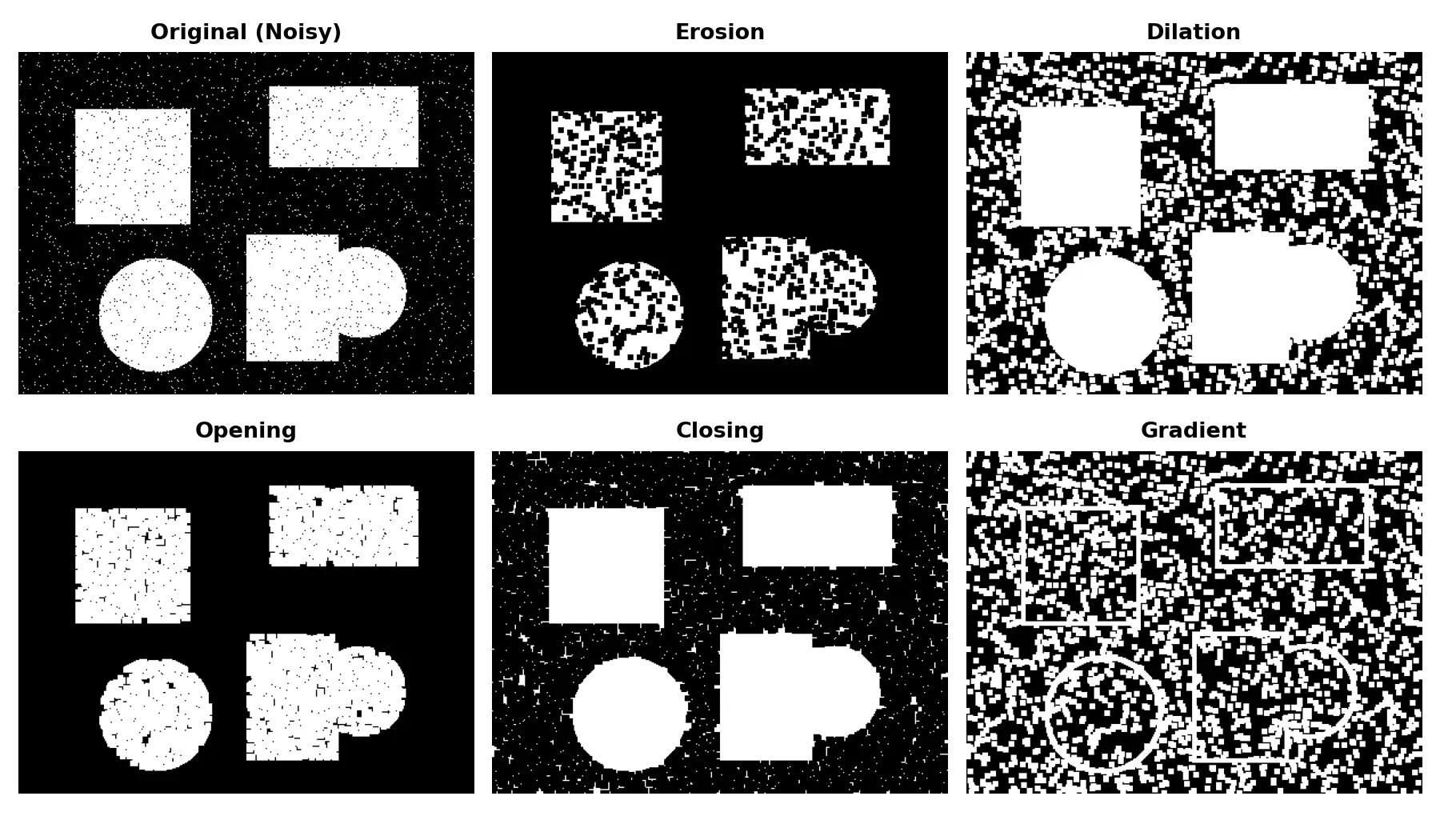
Section titled “Erosion — Shrink the White”Erosion slides the kernel over the image. A pixel stays white only if ALL pixels under the kernel are white. If even one neighbor is black, the center pixel becomes black.
The result: white regions shrink, small white specks disappear, and thin connections break.
# Create a binary image (e.g., from thresholding)_, binary = cv2.threshold(gray, 127, 255, cv2.THRESH_BINARY)
kernel = cv2.getStructuringElement(cv2.MORPH_RECT, (5, 5))
# Erode: white regions shrinkeroded = cv2.erode(binary, kernel, iterations=1)
Before erosion: After erosion:┌─────────────────┐ ┌─────────────────┐│ . . . . . . . . │ │ . . . . . . . . ││ . ■ ■ ■ ■ ■ . . │ │ . . ■ ■ ■ . . . ││ . ■ ■ ■ ■ ■ . . │ → │ . . ■ ■ ■ . . . ││ . ■ ■ ■ ■ ■ . . │ │ . . ■ ■ ■ . . . ││ . . . . . . . . │ │ . . . . . . . . ││ . . . ■ . . . . │ │ . . . . . . . . │ ← noise removed!└─────────────────┘ └─────────────────┘Dilation — Grow the White
Section titled “Dilation — Grow the White”The opposite of erosion. A pixel becomes white if ANY pixel under the kernel is white. One white neighbor is enough.
The result: white regions expand, small holes fill in, and nearby regions merge.
# Dilate: white regions growdilated = cv2.dilate(binary, kernel, iterations=1)Before dilation: After dilation:┌─────────────────┐ ┌─────────────────┐│ . . . . . . . . │ │ ■ ■ ■ ■ ■ ■ . . ││ . ■ ■ ■ ■ ■ . . │ │ ■ ■ ■ ■ ■ ■ ■ . ││ . ■ ■ . ■ ■ . . │ → │ ■ ■ ■ ■ ■ ■ ■ . │ ← hole filled!│ . ■ ■ ■ ■ ■ . . │ │ ■ ■ ■ ■ ■ ■ ■ . ││ . . . . . . . . │ │ ■ ■ ■ ■ ■ ■ ■ . │└─────────────────┘ └─────────────────┘Compound Operations
Section titled “Compound Operations”cv2.morphologyEx() combines erosion and dilation in specific sequences to achieve more useful results:
Opening (Erode → Dilate)
Section titled “Opening (Erode → Dilate)”Removes small white noise without significantly shrinking the main objects. Erosion kills the small specks, then dilation restores the surviving regions to approximately their original size.
opened = cv2.morphologyEx(binary, cv2.MORPH_OPEN, kernel)Use when: Your binary mask has small white dots/noise on the black background.
Closing (Dilate → Erode)
Section titled “Closing (Dilate → Erode)”Fills small black holes inside white regions without significantly expanding them. Dilation fills the holes, then erosion shrinks the expanded boundaries back.
closed = cv2.morphologyEx(binary, cv2.MORPH_CLOSE, kernel)Use when: Your objects have small black holes or gaps that should be filled.
Morphological Gradient (Dilation - Erosion)
Section titled “Morphological Gradient (Dilation - Erosion)”Computes the difference between the dilated and eroded image, giving you the outline of each object.
gradient = cv2.morphologyEx(binary, cv2.MORPH_GRADIENT, kernel)Use when: You want object boundaries/outlines from a binary image.
Top Hat & Black Hat
Section titled “Top Hat & Black Hat”Less common but powerful for specific tasks:
- Top Hat (Original - Opening): Isolates bright spots smaller than the kernel.
- Black Hat (Closing - Original): Isolates dark spots smaller than the kernel.
tophat = cv2.morphologyEx(gray, cv2.MORPH_TOPHAT, kernel)blackhat = cv2.morphologyEx(gray, cv2.MORPH_BLACKHAT, kernel)Use when: You need to extract small bright or dark features from an uneven background (e.g., text on a textured surface).
The Iterations Parameter
Section titled “The Iterations Parameter”All morphological operations accept an iterations parameter that repeats the operation multiple times. This is equivalent to using a larger kernel but gives you finer control:
# These two produce similar (not identical) results:# Option A: Large kernel, 1 iterationbig_kernel = cv2.getStructuringElement(cv2.MORPH_RECT, (11, 11))result_a = cv2.erode(binary, big_kernel, iterations=1)
# Option B: Small kernel, multiple iterationssmall_kernel = cv2.getStructuringElement(cv2.MORPH_RECT, (3, 3))result_b = cv2.erode(binary, small_kernel, iterations=3)
Practical Example: Cleaning a Thresholded Image
Section titled “Practical Example: Cleaning a Thresholded Image”A typical preprocessing pipeline after thresholding:
import cv2import numpy as np
# 1. Load and thresholdimg = cv2.imread("photo.jpg")if img is None:    raise FileNotFoundError("Could not load image!")gray = cv2.cvtColor(img, cv2.COLOR_BGR2GRAY)_, binary = cv2.threshold(gray, 0, 255,                          cv2.THRESH_BINARY + cv2.THRESH_OTSU)
# 2. Create a kernelkernel = cv2.getStructuringElement(cv2.MORPH_ELLIPSE, (5, 5))
# 3. Opening: Remove small white noisecleaned = cv2.morphologyEx(binary, cv2.MORPH_OPEN, kernel)
# 4. Closing: Fill small black holes in objectscleaned = cv2.morphologyEx(cleaned, cv2.MORPH_CLOSE, kernel)
# 5. Displaycv2.imshow("Original Threshold", binary)cv2.imshow("After Morphology", cleaned)cv2.waitKey(0)cv2.destroyAllWindows()Summary Checklist
Section titled “Summary Checklist”- Structuring elements:
cv2.getStructuringElement()with MORPH_RECT, MORPH_ELLIPSE, or MORPH_CROSS. Size controls aggressiveness. - Erosion (
cv2.erode): Shrinks white regions, removes small white noise. All kernel pixels must be white. - Dilation (
cv2.dilate): Grows white regions, fills small holes. Any kernel pixel being white is enough. - Opening (MORPH_OPEN): Erode → Dilate. Removes white noise. The go-to for cleaning noisy masks.
- Closing (MORPH_CLOSE): Dilate → Erode. Fills black holes. Use after Opening for a clean result.
- Gradient (MORPH_GRADIENT): Dilation - Erosion. Extracts object outlines.
- Iterations: Multiple passes of a small kernel ≈ one pass of a large kernel.