

Histograms & Contrast Enhancement
A histogram is like a census for your image — instead of counting people by age, you’re counting pixels by brightness. This “population chart” reveals exposure problems that are invisible to the naked eye and enables powerful contrast enhancement techniques.
Computing Histograms with cv2.calcHist()
Section titled “Computing Histograms with cv2.calcHist()”cv2.calcHist() counts how many pixels have each intensity value (0-255):
import cv2import numpy as npimport matplotlib.pyplot as plt
img = cv2.imread("photo.jpg", cv2.IMREAD_GRAYSCALE)
# Compute the histogram# Parameters: [image], [channel], mask, [bins], [range]hist = cv2.calcHist([img], [0], None, [256], [0, 256])
# Plot itplt.figure(figsize=(8, 4))plt.plot(hist, color='gray')plt.fill_between(range(256), hist.flatten(), alpha=0.3, color='gray')plt.xlabel("Pixel Intensity")plt.ylabel("Number of Pixels")plt.title("Image Histogram")plt.xlim([0, 256])plt.show()Color Histograms
Section titled “Color Histograms”For color images, compute separate histograms for each BGR channel:
img_color = cv2.imread("photo.jpg")
colors = ('b', 'g', 'r')plt.figure(figsize=(8, 4))
for i, color in enumerate(colors):    hist = cv2.calcHist([img_color], [i], None, [256], [0, 256])    plt.plot(hist, color=color, label=color.upper())
plt.legend()plt.xlabel("Pixel Intensity")plt.ylabel("Number of Pixels")plt.xlim([0, 256])plt.show()
What Histograms Tell You
Section titled “What Histograms Tell You”The shape of a histogram immediately reveals the image’s exposure quality:
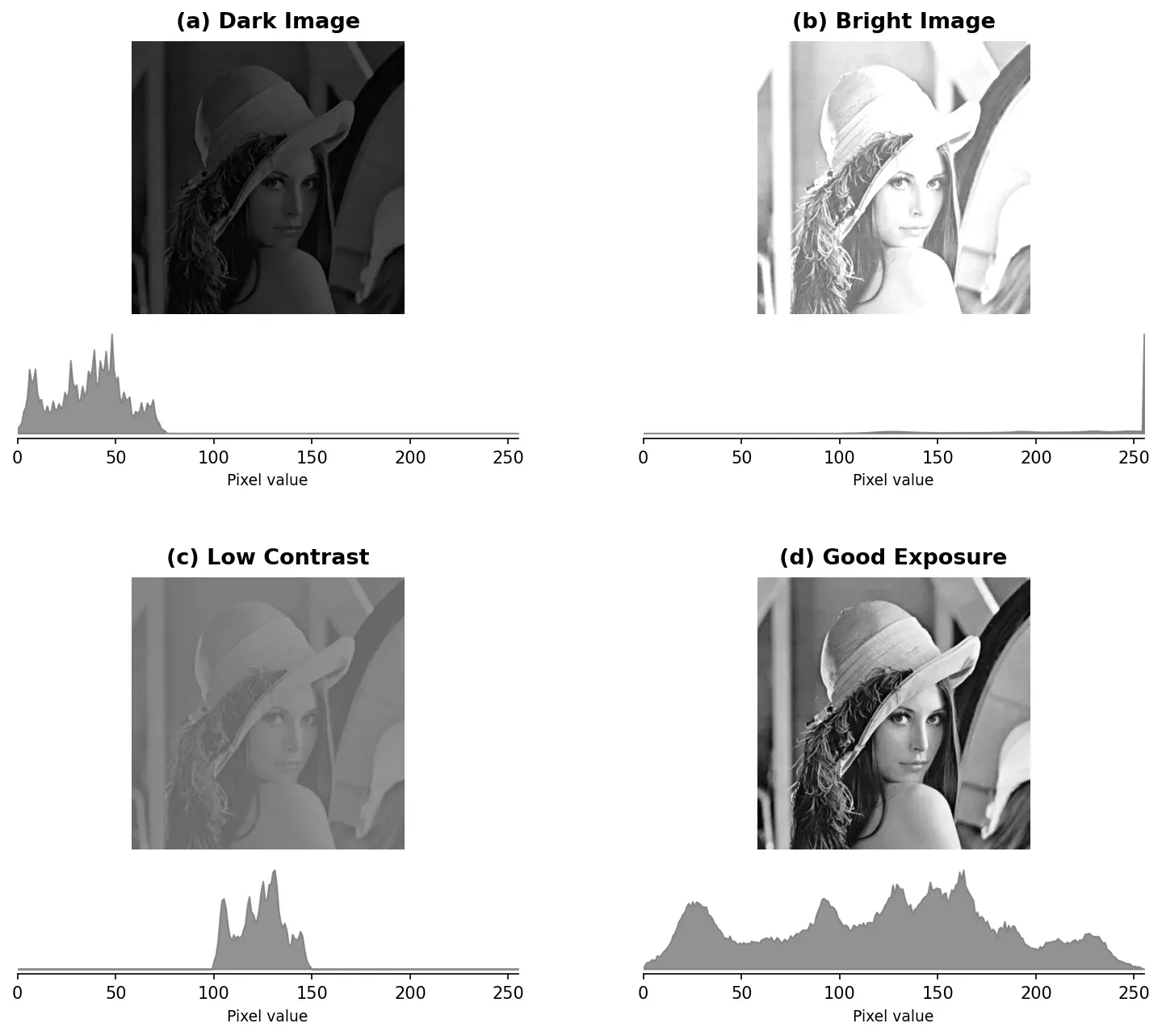
Histogram Equalization
Section titled “Histogram Equalization”cv2.equalizeHist() redistributes pixel values so they spread evenly across the full range. It stretches the contrast by remapping intensities using the cumulative distribution function (CDF).
# Input must be grayscaleequalized = cv2.equalizeHist(gray)The result: dark images get brighter, faded images gain contrast, and the histogram becomes more uniform.
CLAHE — The Smart Equalizer
Section titled “CLAHE — The Smart Equalizer”Global histogram equalization has a problem: it applies the same transformation everywhere. In an image with both dark and bright regions, equalizing globally can over-amplify noise in already-bright areas while still leaving dark areas underwhelming.
CLAHE (Contrast Limited Adaptive Histogram Equalization) solves this by:
- Dividing the image into small tiles
- Equalizing each tile independently
- Limiting the contrast amplification (the “CL” in CLAHE) to prevent noise amplification
- Blending tile boundaries smoothly
# Create a CLAHE object# clipLimit: contrast limiting factor (higher = more contrast, more noise)# tileGridSize: number of tiles (8x8 means the image is divided into 64 regions)clahe = cv2.createCLAHE(clipLimit=2.0, tileGridSize=(8, 8))
# Apply to a grayscale imageenhanced = clahe.apply(gray)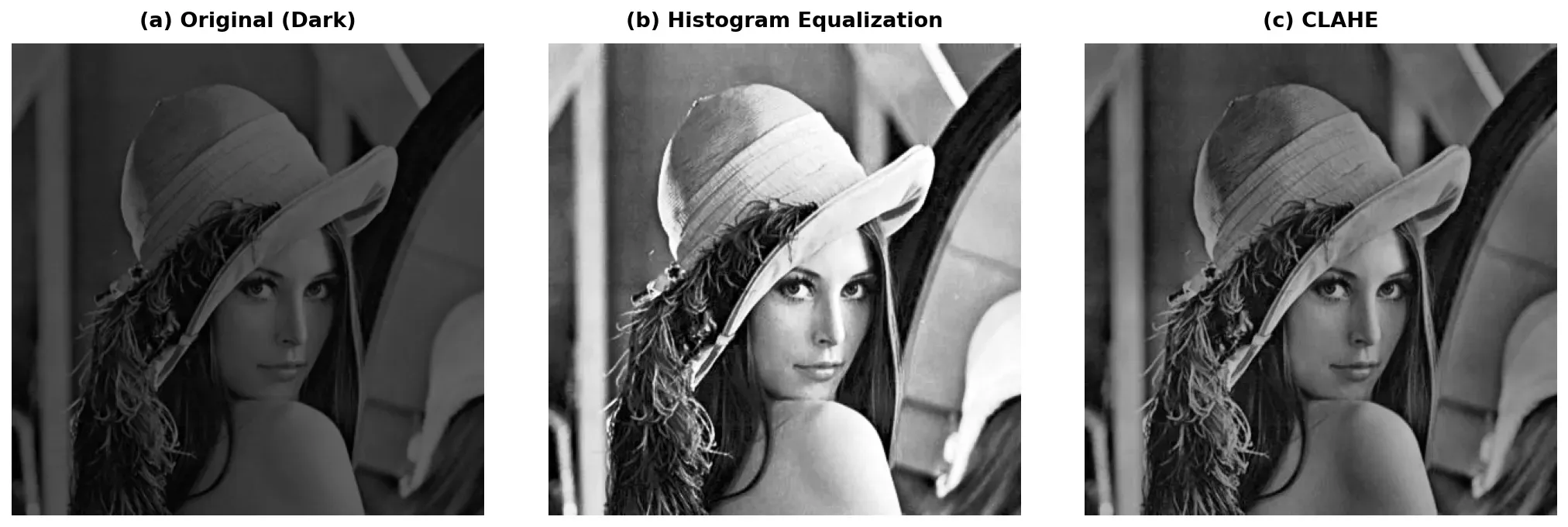
CLAHE Parameters
Section titled “CLAHE Parameters”- clipLimit (default 40.0): Controls how much contrast is amplified. Lower values (1.0-3.0) give subtle enhancement. Higher values amplify more but risk reintroducing noise. Start with 2.0.
- tileGridSize (default (8, 8)): Controls how “local” the equalization is. Smaller tiles = more adaptive. Larger tiles = closer to global equalization.
Practical Example: Enhance an Underexposed Photo
Section titled “Practical Example: Enhance an Underexposed Photo”-
Load the dark/underexposed image:
Python import cv2img = cv2.imread("dark_photo.jpg")if img is None:raise FileNotFoundError("Could not load image!") -
Convert to LAB color space:
Python lab = cv2.cvtColor(img, cv2.COLOR_BGR2LAB)l_channel, a_channel, b_channel = cv2.split(lab) -
Apply CLAHE to the L (lightness) channel:
Python clahe = cv2.createCLAHE(clipLimit=2.0, tileGridSize=(8, 8))enhanced_l = clahe.apply(l_channel) -
Merge channels and convert back to BGR:
Python enhanced_lab = cv2.merge([enhanced_l, a_channel, b_channel])result = cv2.cvtColor(enhanced_lab, cv2.COLOR_LAB2BGR) -
Display the result:
Python cv2.imshow("Original (Dark)", img)cv2.imshow("CLAHE Enhanced", result)cv2.waitKey(0)cv2.destroyAllWindows()
Summary Checklist
Section titled “Summary Checklist”- cv2.calcHist(): Pass
[img](list!),[channel], mask,[bins],[range]. Returns a 256×1 array of pixel counts. - Reading histograms: Bunched left = dark, bunched right = bright, narrow peak = low contrast, spread = good exposure.
- cv2.equalizeHist(): Global contrast enhancement. Only works on single-channel (grayscale) images.
- Never equalize color channels independently — convert to YUV or LAB and equalize only the luminance channel.
- CLAHE:
cv2.createCLAHE(clipLimit, tileGridSize). Local equalization that avoids over-amplifying noise. The go-to for real-world contrast enhancement. - CLAHE on LAB: The standard recipe — convert to LAB, CLAHE the L channel, convert back. Works for any color image.