Drawing Basics
OpenCV provides a set of functions to draw geometric shapes directly onto images. Since images are just NumPy arrays, these functions modify the array in-place — they do not return a new image. Drawing is essential for visualizing computer vision results: bounding boxes around detected objects, keypoints on features, region overlays, and debug visualizations during development.
Every example on this page creates a blank canvas with np.zeros() so you can run them without any external images.
The Coordinate System
Section titled “The Coordinate System”OpenCV uses a screen-style coordinate system. The origin (0, 0) is at the top-left corner of the image. The x-axis increases to the right and the y-axis increases downward. All drawing functions expect coordinates as (x, y) tuples — this is the opposite order from NumPy indexing, which uses (row, col).
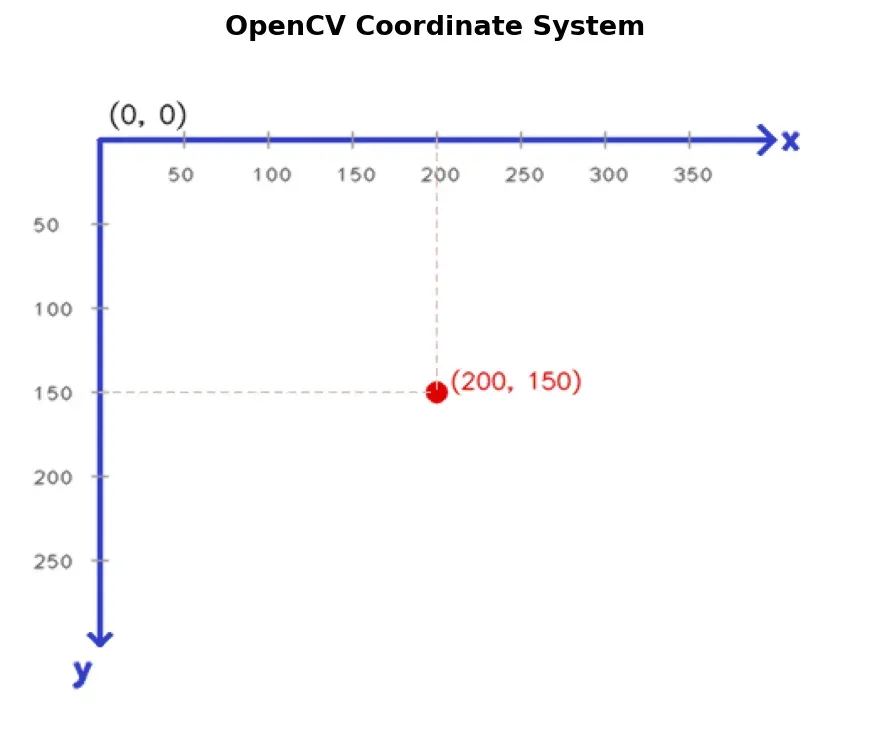
import cv2import numpy as np
# Create a 400x500 black canvas (height=400, width=500, 3 channels)canvas = np.zeros((400, 500, 3), dtype=np.uint8)
# Draw the x-axis (horizontal arrow)cv2.arrowedLine(canvas, (10, 200), (490, 200), (255, 255, 255), 1, tipLength=0.03)cv2.putText(canvas, "x", (470, 190), cv2.FONT_HERSHEY_SIMPLEX, 0.6, (255, 255, 255), 1)
# Draw the y-axis (vertical arrow)cv2.arrowedLine(canvas, (250, 10), (250, 390), (255, 255, 255), 1, tipLength=0.03)cv2.putText(canvas, "y", (260, 390), cv2.FONT_HERSHEY_SIMPLEX, 0.6, (255, 255, 255), 1)
# Mark the origincv2.circle(canvas, (250, 200), 4, (0, 0, 255), -1)cv2.putText(canvas, "(0,0) origin", (260, 220), cv2.FONT_HERSHEY_SIMPLEX, 0.5, (0, 0, 255), 1)
cv2.imshow("Coordinate System", canvas)cv2.waitKey(0)cv2.destroyAllWindows()Color and Common Parameters
Section titled “Color and Common Parameters”All drawing functions share a common set of parameters that control appearance.
Color is specified as a BGR tuple (B, G, R) for 3-channel images. For single-channel grayscale images, pass a scalar integer. Some common colors in BGR:
- Red:
(0, 0, 255) - Green:
(0, 255, 0) - Blue:
(255, 0, 0) - White:
(255, 255, 255) - Yellow:
(0, 255, 255)
Thickness
Section titled “Thickness”The thickness parameter controls the stroke width in pixels. A positive value draws an outline of that width. Passing -1 or cv2.FILLED fills the shape entirely.
Line Type
Section titled “Line Type”The lineType parameter controls how lines are rasterized:
cv2.LINE_4— 4-connected Bresenham line. Fastest but most jagged.cv2.LINE_8— 8-connected Bresenham line. Default for all drawing functions.cv2.LINE_AA— Anti-aliased line using Gaussian filtering. Smoothest but slowest.
The shift parameter allows sub-pixel precision by treating coordinates as fixed-point numbers. This is advanced and rarely needed for typical drawing tasks.
Drawing Lines — cv2.line()
Section titled “Drawing Lines — cv2.line()”cv2.line(img, pt1, pt2, color, thickness=1, lineType=cv2.LINE_8)Draws a straight line from pt1 to pt2. Both points are (x, y) integer tuples.
Grid pattern
Section titled “Grid pattern”import cv2import numpy as np
canvas = np.zeros((400, 400, 3), dtype=np.uint8)
# Draw a grid with 50px spacingfor x in range(0, 401, 50): cv2.line(canvas, (x, 0), (x, 400), (40, 40, 40), 1)for y in range(0, 401, 50): cv2.line(canvas, (0, y), (400, y), (40, 40, 40), 1)
# Draw thicker axis lines through the centercv2.line(canvas, (200, 0), (200, 400), (0, 255, 0), 2)cv2.line(canvas, (0, 200), (400, 200), (0, 255, 0), 2)
cv2.imshow("Grid", canvas)cv2.waitKey(0)cv2.destroyAllWindows()Crosshair at center
Section titled “Crosshair at center”import cv2import numpy as np
canvas = np.zeros((300, 300, 3), dtype=np.uint8)cx, cy = 150, 150size = 20
cv2.line(canvas, (cx - size, cy), (cx + size, cy), (0, 255, 255), 2, cv2.LINE_AA)cv2.line(canvas, (cx, cy - size), (cx, cy + size), (0, 255, 255), 2, cv2.LINE_AA)
cv2.imshow("Crosshair", canvas)cv2.waitKey(0)cv2.destroyAllWindows()Drawing Rectangles — cv2.rectangle()
Section titled “Drawing Rectangles — cv2.rectangle()”cv2.rectangle(img, pt1, pt2, color, thickness=1, lineType=cv2.LINE_8)Draws a rectangle defined by its top-left corner pt1 and bottom-right corner pt2. You can also pass a tuple (x, y, w, h) as rec in the alternative form, but the two-point form is far more common.
Outlined bounding box
Section titled “Outlined bounding box”import cv2import numpy as np
canvas = np.zeros((400, 400, 3), dtype=np.uint8)
# Draw an outlined rectangle (simulating a bounding box)cv2.rectangle(canvas, (80, 60), (320, 340), (0, 255, 0), 2)
cv2.imshow("Bounding Box", canvas)cv2.waitKey(0)cv2.destroyAllWindows()Filled semi-transparent rectangle
Section titled “Filled semi-transparent rectangle”OpenCV does not support alpha blending directly, but you can achieve transparency by drawing on a copy and blending with cv2.addWeighted().
import cv2import numpy as np
canvas = np.zeros((400, 400, 3), dtype=np.uint8)
# Draw some background contentcv2.circle(canvas, (200, 200), 80, (255, 255, 255), 2)cv2.putText(canvas, "Background", (120, 210), cv2.FONT_HERSHEY_SIMPLEX, 0.7, (255, 255, 255), 1)
# Create an overlay for the semi-transparent rectangleoverlay = canvas.copy()cv2.rectangle(overlay, (50, 50), (350, 150), (255, 0, 0), cv2.FILLED)
# Blend: 60% original + 40% overlayalpha = 0.4cv2.addWeighted(overlay, alpha, canvas, 1 - alpha, 0, canvas)
cv2.imshow("Semi-Transparent Rectangle", canvas)cv2.waitKey(0)cv2.destroyAllWindows()
Drawing Circles — cv2.circle()
Section titled “Drawing Circles — cv2.circle()”cv2.circle(img, center, radius, color, thickness=1, lineType=cv2.LINE_8)Draws a circle with the given center (x, y) and radius in pixels. Pass thickness=-1 to fill.
Concentric circles (bullseye)
Section titled “Concentric circles (bullseye)”import cv2import numpy as np
canvas = np.zeros((400, 400, 3), dtype=np.uint8)center = (200, 200)colors = [(0, 0, 255), (0, 165, 255), (0, 255, 255), (0, 255, 0), (255, 0, 0)]
for i, color in enumerate(colors): radius = 180 - i * 35 cv2.circle(canvas, center, radius, color, 2, cv2.LINE_AA)
# Filled center dotcv2.circle(canvas, center, 10, (255, 255, 255), -1, cv2.LINE_AA)
cv2.imshow("Bullseye", canvas)cv2.waitKey(0)cv2.destroyAllWindows()Filled circles as dot markers
Section titled “Filled circles as dot markers”import cv2import numpy as np
canvas = np.zeros((300, 300, 3), dtype=np.uint8)
# Simulate detected keypointskeypoints = [(50, 80), (150, 200), (250, 120), (100, 260), (220, 50)]
for pt in keypoints: cv2.circle(canvas, pt, 6, (0, 255, 0), -1, cv2.LINE_AA) # filled dot cv2.circle(canvas, pt, 12, (0, 255, 0), 1, cv2.LINE_AA) # outer ring
cv2.imshow("Keypoints", canvas)cv2.waitKey(0)cv2.destroyAllWindows()Drawing Ellipses — cv2.ellipse()
Section titled “Drawing Ellipses — cv2.ellipse()”cv2.ellipse(img, center, axes, angle, startAngle, endAngle, color, thickness=1, lineType=cv2.LINE_8)This function has several parameters:
center—(x, y)center of the ellipse.axes—(major_half, minor_half)— half-lengths of the major and minor axes.angle— Rotation of the ellipse in degrees (clockwise).startAngle/endAngle— Angular range to draw, in degrees. Use0to360for a full ellipse.
Rotated ellipse
Section titled “Rotated ellipse”import cv2import numpy as np
canvas = np.zeros((400, 400, 3), dtype=np.uint8)
# Full ellipse rotated 30 degreescv2.ellipse(canvas, (200, 200), (150, 80), 30, 0, 360, (0, 255, 255), 2, cv2.LINE_AA)
# Same ellipse without rotation for comparisoncv2.ellipse(canvas, (200, 200), (150, 80), 0, 0, 360, (100, 100, 100), 1, cv2.LINE_AA)
cv2.imshow("Rotated Ellipse", canvas)cv2.waitKey(0)cv2.destroyAllWindows()Arc and pie segment
Section titled “Arc and pie segment”You can draw partial ellipses by setting startAngle and endAngle to values other than 0 and 360. A filled partial ellipse creates a pie-chart-like wedge.
import cv2import numpy as np
canvas = np.zeros((400, 400, 3), dtype=np.uint8)
# Arc from 0 to 270 degrees (outline only)cv2.ellipse(canvas, (150, 200), (100, 60), 0, 0, 270, (255, 0, 255), 2, cv2.LINE_AA)
# Filled pie segment from 0 to 270 degreescv2.ellipse(canvas, (300, 200), (80, 80), 0, 0, 270, (0, 200, 200), cv2.FILLED, cv2.LINE_AA)
cv2.imshow("Arc and Pie", canvas)cv2.waitKey(0)cv2.destroyAllWindows()Drawing Polygons — cv2.polylines() and cv2.fillPoly()
Section titled “Drawing Polygons — cv2.polylines() and cv2.fillPoly()”cv2.polylines(img, pts, isClosed, color, thickness=1, lineType=cv2.LINE_8)cv2.fillPoly(img, pts, color, lineType=cv2.LINE_8)Both functions accept pts as a list of arrays, where each array has shape (N, 1, 2) and dtype np.int32. The isClosed parameter in polylines determines whether the last point connects back to the first.
Triangle outline
Section titled “Triangle outline”import cv2import numpy as np
canvas = np.zeros((400, 400, 3), dtype=np.uint8)
triangle = np.array([[200, 50], [50, 350], [350, 350]], dtype=np.int32)triangle = triangle.reshape((-1, 1, 2))
cv2.polylines(canvas, [triangle], isClosed=True, color=(0, 255, 0), thickness=2, lineType=cv2.LINE_AA)
cv2.imshow("Triangle", canvas)cv2.waitKey(0)cv2.destroyAllWindows()Filled pentagon
Section titled “Filled pentagon”import cv2import numpy as np
canvas = np.zeros((400, 400, 3), dtype=np.uint8)
# Regular pentagon centered at (200, 200)angles = np.linspace(0, 2 * np.pi, 6)[:-1] - np.pi / 2 # start from topradius = 120cx, cy = 200, 200pentagon = np.array([ [int(cx + radius * np.cos(a)), int(cy + radius * np.sin(a))] for a in angles], dtype=np.int32).reshape((-1, 1, 2))
cv2.fillPoly(canvas, [pentagon], (255, 100, 50))
cv2.imshow("Pentagon", canvas)cv2.waitKey(0)cv2.destroyAllWindows()Multiple polygons at once
Section titled “Multiple polygons at once”You can pass multiple arrays in the pts list to draw several polygons in a single call.
import cv2import numpy as np
canvas = np.zeros((400, 600, 3), dtype=np.uint8)
square = np.array([[50, 50], [200, 50], [200, 200], [50, 200]], dtype=np.int32).reshape((-1, 1, 2))
diamond = np.array([[400, 50], [500, 150], [400, 250], [300, 150]], dtype=np.int32).reshape((-1, 1, 2))
arrow = np.array([[250, 280], [350, 280], [350, 260], [420, 300],                   [350, 340], [350, 320], [250, 320]], dtype=np.int32).reshape((-1, 1, 2))
# Draw all three outlines in one callcv2.polylines(canvas, [square, diamond, arrow], isClosed=True,              color=(0, 200, 255), thickness=2, lineType=cv2.LINE_AA)
cv2.imshow("Multiple Polygons", canvas)cv2.waitKey(0)cv2.destroyAllWindows()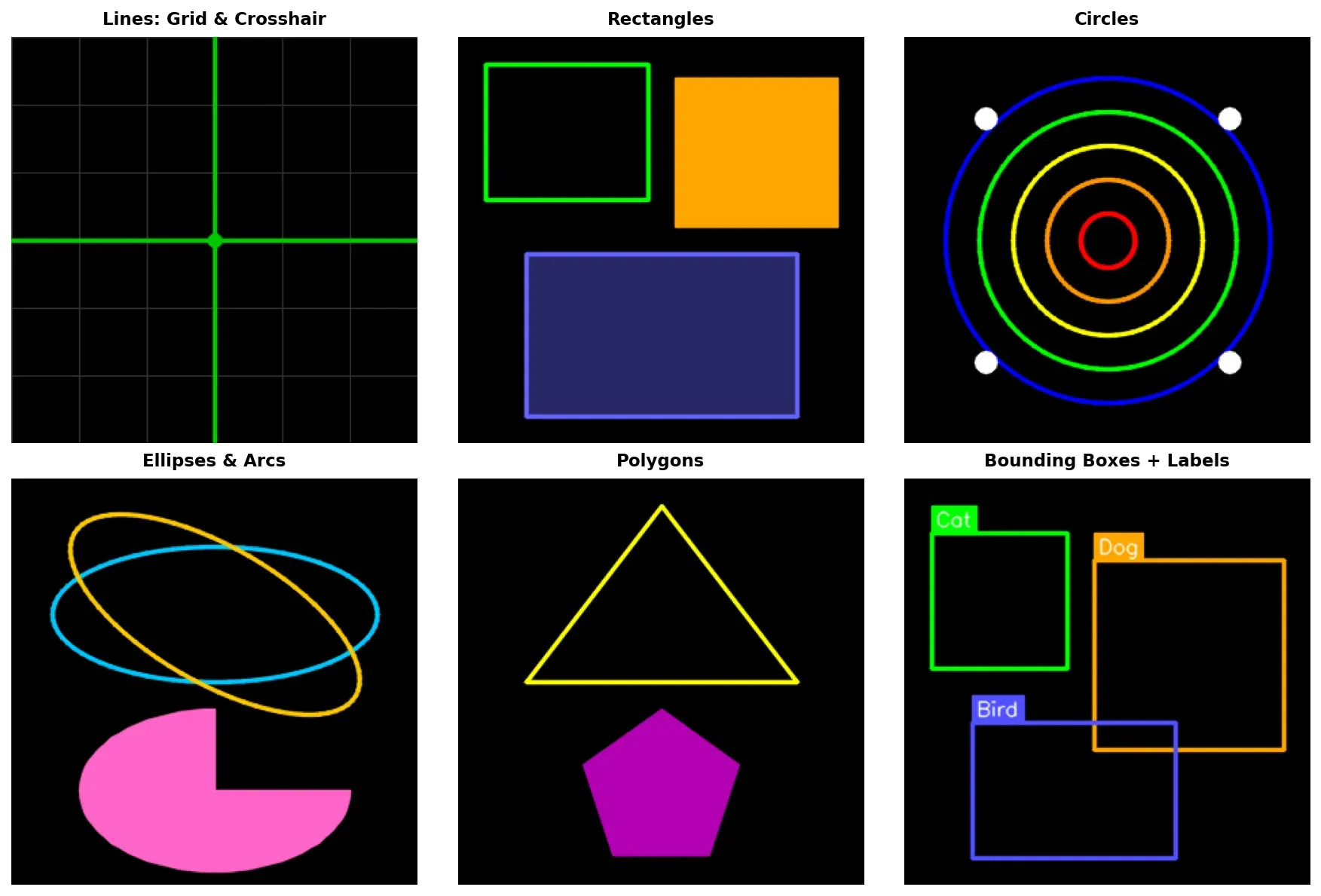
Practical Example — Drawing Bounding Boxes with Labels
Section titled “Practical Example — Drawing Bounding Boxes with Labels”In object detection, the standard visualization pattern is to draw a colored rectangle around each detection and place a text label above it. The following example demonstrates this common workflow on a blank canvas.
import cv2import numpy as np
canvas = np.zeros((500, 700, 3), dtype=np.uint8)
# Simulated detections: (label, confidence, x1, y1, x2, y2, color)detections = [    ("person", 0.95, 50, 80, 220, 450, (0, 255, 0)),    ("dog", 0.87, 260, 250, 450, 440, (255, 165, 0)),    ("car", 0.73, 480, 100, 670, 320, (0, 0, 255)),]
font = cv2.FONT_HERSHEY_SIMPLEXfont_scale = 0.6font_thickness = 1
for label, conf, x1, y1, x2, y2, color in detections:    # Draw bounding box    cv2.rectangle(canvas, (x1, y1), (x2, y2), color, 2)
    # Prepare label text    text = f"{label} {conf:.2f}"    (text_w, text_h), baseline = cv2.getTextSize(text, font, font_scale, font_thickness)
    # Draw filled rectangle behind the text for readability    cv2.rectangle(canvas, (x1, y1 - text_h - baseline - 4), (x1 + text_w + 4, y1), color, cv2.FILLED)
    # Draw label text in black on the colored background    cv2.putText(canvas, text, (x1 + 2, y1 - baseline - 2), font, font_scale, (0, 0, 0), font_thickness, cv2.LINE_AA)
cv2.imshow("Object Detection Visualization", canvas)cv2.waitKey(0)cv2.destroyAllWindows()
This pattern scales to any number of detections. In a real pipeline you would replace the hardcoded detections list with output from a model — each item typically contains a class label, confidence score, and bounding box coordinates. The cv2.getTextSize() call ensures the label background always fits the text exactly regardless of font or string length.