
Color Space Conversions
In the Fundamentals section, you learned what color spaces are — BGR, HSV, Grayscale, and YUV. Now it’s time to use them as preprocessing tools.
Color space conversion is often the very first step in any computer vision pipeline. Why? Because choosing the right color space makes downstream tasks (like detecting objects, segmenting regions, or enhancing contrast) dramatically easier.
The cv2.cvtColor() Toolkit
Section titled “The cv2.cvtColor() Toolkit”You’ve already seen cv2.cvtColor() for basic conversions. Here’s the complete reference for the conversions you’ll use most:
| Conversion Code | From → To | When to Use |
|---|---|---|
cv2.COLOR_BGR2GRAY | BGR → Grayscale | Edge detection, thresholding, most preprocessing |
cv2.COLOR_BGR2HSV | BGR → HSV | Color-based object detection and filtering |
cv2.COLOR_BGR2LAB | BGR → LAB | Contrast enhancement (CLAHE), perceptual comparisons |
cv2.COLOR_BGR2RGB | BGR → RGB | Displaying with Matplotlib or saving for web |
cv2.COLOR_GRAY2BGR | Grayscale → BGR | Adding color annotations to a grayscale result |
import cv2
img = cv2.imread("photo.jpg")if img is None:    raise FileNotFoundError("Could not load image. Check your path!")
# Convert to different color spacesgray = cv2.cvtColor(img, cv2.COLOR_BGR2GRAY)hsv = cv2.cvtColor(img, cv2.COLOR_BGR2HSV)lab = cv2.cvtColor(img, cv2.COLOR_BGR2LAB)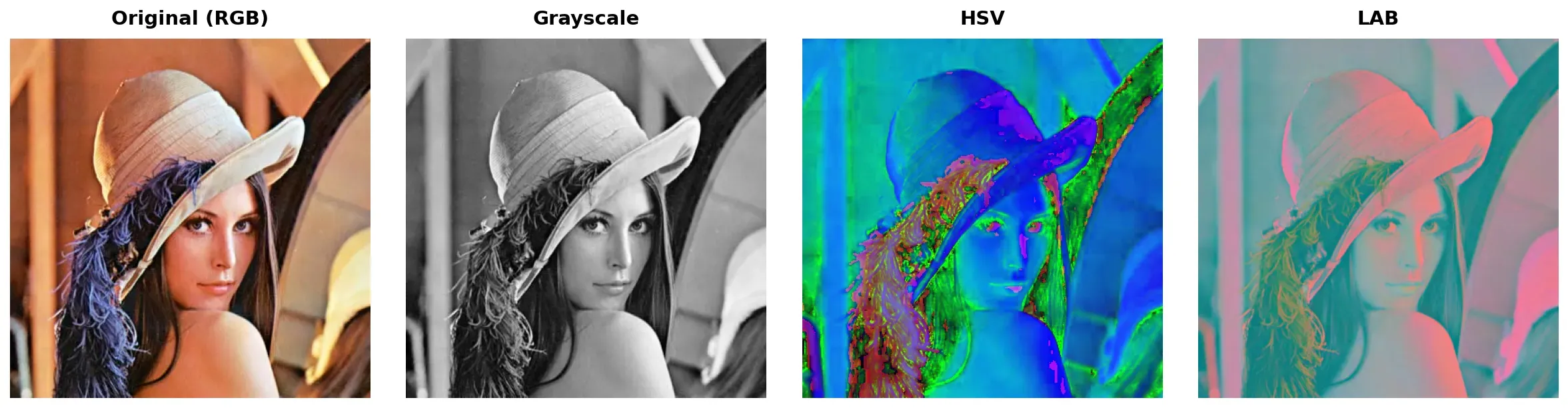
The LAB Color Space
Section titled “The LAB Color Space”You already know BGR, HSV, and Grayscale from Fundamentals. The one that didn’t get its spotlight is LAB (also written as L*a*b*), and it’s secretly one of the most useful color spaces for preprocessing.
LAB separates an image into three channels:
- L (Lightness): Pure brightness, from 0 (black) to 255 (white). Think of it as a “better grayscale.”
- a: Color range from Green (low values) to Red/Magenta (high values).
- b: Color range from Blue (low values) to Yellow (high values).
Why is this useful? LAB is perceptually uniform — a change of 10 units in LAB looks like the same amount of change to the human eye, no matter where you are on the scale. BGR and RGB don’t have this property (a jump from 100→110 in Red looks different than 200→210).
This makes LAB ideal for:
- Contrast enhancement: Apply CLAHE to just the L channel (we’ll cover this in the Histograms page).
- Color difference measurement: Comparing how “similar” two colors look to a human.
- Lighting-invariant operations: The L channel captures all the lighting; a and b capture pure color.
# Convert to LABlab = cv2.cvtColor(img, cv2.COLOR_BGR2LAB)
# Split into channelsl_channel, a_channel, b_channel = cv2.split(lab)
# The L channel is a high-quality grayscale representation# The a and b channels contain pure color information
Color Filtering with cv2.inRange()
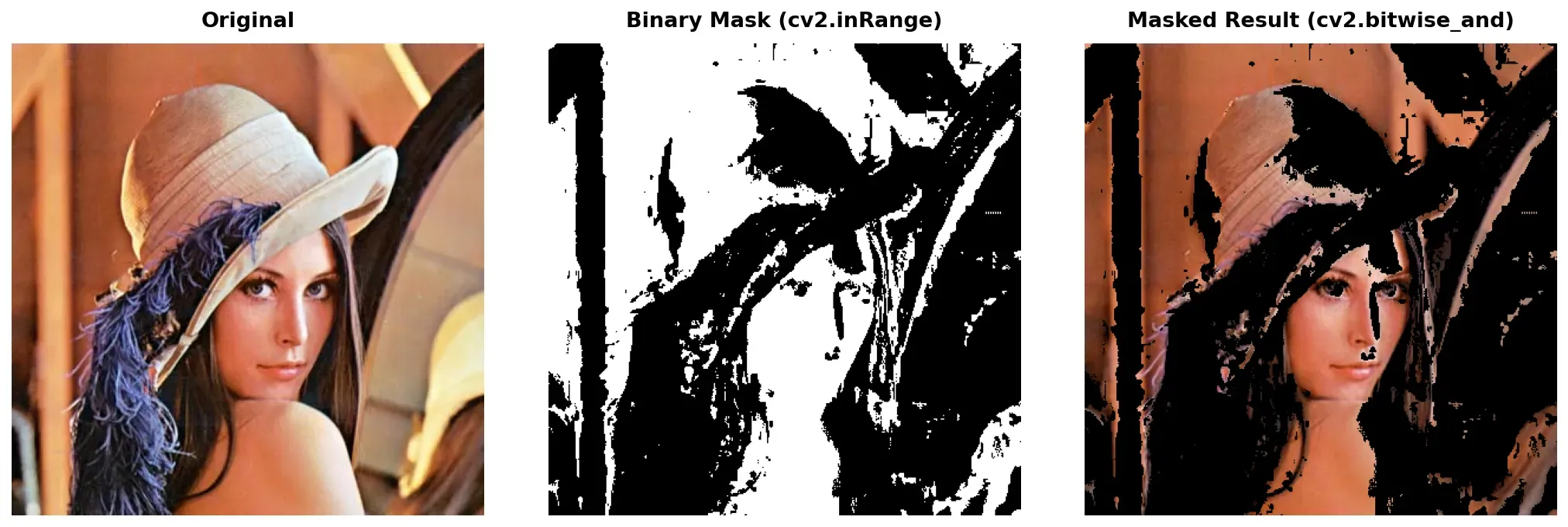
Section titled “Color Filtering with cv2.inRange()”This is where color spaces become truly powerful as a preprocessing tool. cv2.inRange() lets you create a binary mask that isolates pixels within a specific color range — essentially saying “show me only the blue pixels” or “find everything that’s green.”
The workflow is always the same:
-
Convert to HSV — because HSV separates color (Hue) from lighting (Value), making your filter robust to shadows and brightness changes.
Python import cv2import numpy as npimg = cv2.imread("photo.jpg")hsv = cv2.cvtColor(img, cv2.COLOR_BGR2HSV) -
Define your color range — pick lower and upper bounds for Hue, Saturation, and Value.
Python # Example: Detect green objects# Hue: 35-85 (green range in OpenCV's 0-179 scale)# Saturation: 50-255 (ignore very faded pixels)# Value: 50-255 (ignore very dark pixels)lower_green = np.array([35, 50, 50])upper_green = np.array([85, 255, 255]) -
Create the mask —
cv2.inRange()returns a binary image where white pixels are “in range” and black pixels are “out of range.”Python mask = cv2.inRange(hsv, lower_green, upper_green)# mask is a single-channel image: 255 where green, 0 elsewhere -
Apply the mask — use
cv2.bitwise_and()to keep only the pixels that passed the filter.Python result = cv2.bitwise_and(img, img, mask=mask)# result shows only the green parts of the original image
Common HSV Ranges
Section titled “Common HSV Ranges”Here’s a cheat sheet for detecting common colors in OpenCV’s HSV scale (Hue: 0-179, Saturation: 0-255, Value: 0-255):
| Color | Hue Low | Hue High | Notes |
|---|---|---|---|
| Red | 0-10 and 170-179 | — | Red wraps around! Need two masks. |
| Orange | 10 | 25 | |
| Yellow | 25 | 35 | |
| Green | 35 | 85 | |
| Blue | 85 | 130 | |
| Purple | 130 | 170 |
Practical Example: Isolating a Colored Object
Section titled “Practical Example: Isolating a Colored Object”Here’s a complete pipeline that detects and isolates a blue object from a scene:
import cv2import numpy as np
# 1. Load the imageimg = cv2.imread("scene.jpg")if img is None:    raise FileNotFoundError("Could not load image!")
# 2. Convert to HSVhsv = cv2.cvtColor(img, cv2.COLOR_BGR2HSV)
# 3. Define blue rangelower_blue = np.array([85, 50, 50])upper_blue = np.array([130, 255, 255])
# 4. Create binary maskmask = cv2.inRange(hsv, lower_blue, upper_blue)
# 5. Optional: Clean up the mask with morphology# (We'll cover this in detail in the Morphological Operations page)kernel = np.ones((5, 5), np.uint8)mask = cv2.morphologyEx(mask, cv2.MORPH_OPEN, kernel)mask = cv2.morphologyEx(mask, cv2.MORPH_CLOSE, kernel)
# 6. Apply the mask to the original imageresult = cv2.bitwise_and(img, img, mask=mask)
# 7. Displaycv2.imshow("Original", img)cv2.imshow("Mask", mask)cv2.imshow("Blue Objects Only", result)cv2.waitKey(0)cv2.destroyAllWindows()
Summary Checklist
Section titled “Summary Checklist”- cv2.cvtColor(): Your gateway to all color space conversions. Know the major flags (BGR2GRAY, BGR2HSV, BGR2LAB, BGR2RGB).
- LAB color space: Use the L channel for contrast enhancement and perceptually uniform color comparisons.
- cv2.inRange(): Creates binary masks from HSV ranges. Always convert to HSV first for robust color filtering.
- Red wrap-around: Red hue spans both ends of the 0-179 range — combine two masks with
cv2.bitwise_or(). - Mask application: Use
cv2.bitwise_and(img, img, mask=mask)to apply a binary mask to an image.